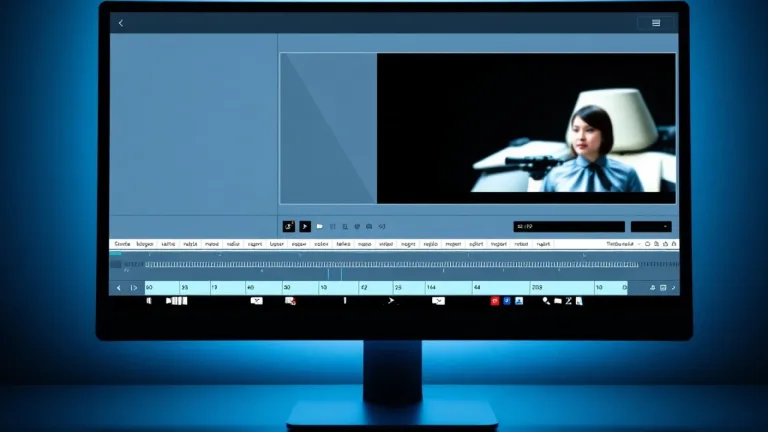
To add readable text to a clip's spoken audio in Canva and ensure the subtitles remain in the downloaded MP4 file, you must use the editor's editable subtitles. These are generated from the available command, corrected, and exported together with the video, unlike view-only subtitles that remain visible only on Canva and are not included in the download. The process involves uploading a short clip with clear, authorized Italian speech, generating the editable subtitles, correcting names and punctuation, checking synchronization and line breaks, choosing readable contrast and size, and finally exporting to MP4 with verification of the downloaded file.
Canva's documentation explicitly distinguishes two functions for subtitles. Accessibility or view-only ones are visible in the editor and on Canva but they cannot be downloaded with the video. Editable subtitles, on the other hand, are part of the creative workflow and allow both text correction and downloading the MP4 video with embedded text. This distinction resolves the uncertainty between editable elements added to the project and view-only elements.
To avoid confusion, it is advisable to check the active subtitle type before proceeding with editing. If the text appears in the editor but disappears in the downloaded file, it is likely that the view-only path was used. In that case you need to switch to generating editable subtitles. This is not a separate SRT file: the text is embedded in the MP4 video. A separate SRT file export is not provided unless verified, and unlimited free translations or increases in views are not promised.
The process starts by uploading a short clip with clear, authorized Italian speech. From the editor, the editable subtitles are generated using the available command. Once generated, you can correct proper names and punctuation. A didactic correction example involves replacing an incorrect proper name with the correct form, keeping the rest of the sentence and checking that the change does not alter synchronization.
After correcting, check that the text is synchronized with the speech and that sentence breaks keep each line readable. Also choose sufficient contrast and size for easy reading. For vertical videos, position the text away from areas covered by platform controls and check it on a small screen. Menus and feature availability may vary by editor version and plan; official pages show different paths, so check the options available at the time of publishing.
After finishing the review, export the project in MP4 format. Once the file is downloaded, reopen it and check that the subtitle text is actually present. If the text is visible in the editor but disappears in the download, the most common cause is using view-only subtitles instead of editable ones. In this case, return to the editor, generate or reactivate the editable subtitles, repeat the necessary corrections, and export again.
The result is a video with text embedded, not a separate subtitle file. Therefore, do not confuse the video with embedded text with an SRT. Checking the downloaded file is the only way to confirm that the subtitles have been kept. No specific test is claimed to have been performed unless it was executed; verification remains the responsibility of whoever exports the video.
Before exporting, it is advisable to follow a checklist: verify that editable subtitles have been generated, correct names and punctuation, check synchronization and sentence breaks, set readable contrast and size, position the text away from interface areas in vertical videos and finally export and reopen the MP4 file to confirm the presence of the text.
Among the most frequent FAQs is the case of unclear audio: if the speech is not clear, automatic generation may produce more errors and requires more accurate correction. Another question concerns the difference between the two functions: view-only subtitles remain on Canva and are not downloaded, while editable ones are embedded in the MP4 video. Always check the editor options and official page guidance, as paths may vary by version and plan.
Contents
- Distinction between editable and view-only subtitles
- Generating and correcting editable subtitles
- Exporting the MP4 video and verifying text presence
- Checklist and FAQ before exporting
Distinction between editable and view-only subtitles
Canva's documentation explicitly distinguishes two functions for subtitles. Accessibility or view-only ones are visible in the editor and on Canva but they cannot be downloaded with the video. Editable subtitles, on the other hand, are part of the creative workflow and allow both text correction and downloading the MP4 video with embedded text. This distinction resolves the uncertainty between editable elements added to the project and view-only elements.
To avoid confusion, it is advisable to check the active subtitle type before proceeding with editing. If the text appears in the editor but disappears in the downloaded file, it is likely that the view-only path was used. In that case you need to switch to generating editable subtitles. This is not a separate SRT file: the text is embedded in the MP4 video. A separate SRT file export is not provided unless verified, and unlimited free translations or increases in views are not promised.
Generating and correcting editable subtitles
The process starts by uploading a short clip with clear, authorized Italian speech. From the editor, the editable subtitles are generated using the available command. Once generated, you can correct proper names and punctuation. A didactic correction example involves replacing an incorrect proper name with the correct form, keeping the rest of the sentence and checking that the change does not alter synchronization.
After correcting, check that the text is synchronized with the speech and that sentence breaks keep each line readable. Also choose sufficient contrast and size for easy reading. For vertical videos, position the text away from areas covered by platform controls and check it on a small screen. Menus and feature availability may vary by editor version and plan; official pages show different paths, so check the options available at the time of publishing.
Exporting the MP4 video and verifying text presence
After finishing the review, export the project in MP4 format. Once the file is downloaded, reopen it and check that the subtitle text is actually present. If the text is visible in the editor but disappears in the download, the most common cause is using view-only subtitles instead of editable ones. In this case, return to the editor, generate or reactivate the editable subtitles, repeat the necessary corrections, and export again.
The result is a video with text embedded, not a separate subtitle file. Therefore, do not confuse the video with embedded text with an SRT. Checking the downloaded file is the only way to confirm that the subtitles have been kept. No specific test is claimed to have been performed unless it was executed; verification remains the responsibility of whoever exports the video.
Checklist and FAQ before exporting
Before exporting, it is advisable to follow a checklist: verify that editable subtitles have been generated, correct names and punctuation, check synchronization and sentence breaks, set readable contrast and size, position the text away from interface areas in vertical videos and finally export and reopen the MP4 file to confirm the presence of the text.
Among the most frequent FAQs is the case of unclear audio: if the speech is not clear, automatic generation may produce more errors and requires more accurate correction. Another question concerns the difference between the two functions: view-only subtitles remain on Canva and are not downloaded, while editable ones are embedded in the MP4 video. Always check the editor options and official page guidance, as paths may vary by version and plan.
Salsomaggiore Terme (Tutorial) - 06/11/2026 - How to generate and keep Canva automatic subtitles in the MP4 video
Written by Mokik
Written by Mokik
Referral links
Referral links do not influence our judgement or the content of the article. Our aim is to provide accurate, detailed and useful information for our readers.
Amazon Support MrPaloma by starting your Amazon shopping from this link amazon.it.
NordVpn Protect your browsing and support us: get NordVPN through our affiliate link! Nord Vpn
StarLinik Internet wherever you go StarLinik
Amazon Prime | Amazon Music Unlimited | Prime Video | Amazon Business | Kindle Unlimited | Amazon Wedding List | Prime Student